Jumat, 24 Mei 2013

Solusi masalah d3dx9_30.dll

Bagi kalian yang menemu masalahseperti pada gambar, lanjutkan membaca, kalau tidak , , ya tidak usah dibaca , , , hehe


Download dulu file di bawah:
DOWNLOAD 1 mb

Extrak pada aplikasi yang membutuhkan, atau pada 
C:\WINDOWS\system32 coba jalankan aplikasi yang butuh barusan pasti bisa.

sebenarnya ini file DirectX (mungkin) yang dibutuhkan dalam bermain game, sedangkan game itu gak memiliki filenya, atau pun os kita sendiri yang gak punya.


Semoga solusi yang Ghesa berikan bisa membantu. thz

Selasa, 21 Mei 2013

Configuring the Outook Gmail settings


You can configure Outlook to handle your Gmail account as a POP3 or as an IMAP account. Depending on your choice, you have to enable the related account option in your Gmail account (Gmail Settings -> Forwarding and POP/IMAP).

  • Below, we will detail how to setup Microsoft Office Outlook 2000 to 2010 to send, receive and store email messages for a Gmail address. Before getting started, please make sure you know your Gmail email address and your Gmail password.
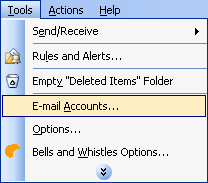
  • Start Outlook: from the main Outlook window, go to Tools -> Email Accounts.
    selecting the Outlook email accounts for Gmail

    On the Outlook popup window, select to "Add a new e-mail account" and click on Next.
    Outlook add email account

    On the server type step, select POP3 or IMAP (depending on your needs) for the Outlook email account type, then click on Next. There is no need to select the IMAP type, because the Gmail web based account will anyway keep a copy of all emails, just like an IMAP account would do.
    gmail pop3 for outlook

    On the next screen, you will have to specify your Outlook Gmail settings, such as your Gmail username and password, Gmail server addresses, Gmail server ports and Outlook Gmail display name.
  • On the User Information section, enter your Name (it can be anything, but remember this is going to be the name/text that people will see when you will send them an email via your Outlook Gmail account) and your Gmail email address.

  • On the Server Information section, enter the Google Gmail servers: 

    POP Gmail servers for Outlook: 
    - Incoming mail server: pop.gmail.com 
    - Outgoing mail server: smtp.gmail.com. 

    IMAP Gmail server for Outlook: 
    - Incoming mail server: imap.gmail.com 
    - Outgoing mail server: smtp.gmail.com. 

    As an alternative, you may setup any other outgoing mail server that you have access to, such as your ISP's SMTP server or your own hosted outgoing server. However, if you setup a 3rd party outgoing mail server, you will not have access to sent emails via your web based Gmail account panel. 

  • On the Logon Information section, enter your Gmail User Name (which is the same as your Gmail email address) and your Gmail password. Tick the box "Remember password" in order to make Outlook to store the Gmail password, so it will not ask you about it every time when Outlook will send/receive emails for the Gmail account.

  • Click on the "More Settings" button and go to the "Advanced" window tab. 

    If you use Gmail as a POP Outlook account: 
    - On the "Incoming server (POP3)" field, enter 995 and mark the box "This server requires an encrypted connection (SSL)"; 
    - On the "Outgoing server (SMTP)" field, enter 465 and mark the box "This server requires an encrypted connection (SSL)". 

    If you use Gmail as an IMAP Outlook account: 
    - On the "Incoming server (IMAP)" field, enter 993 and mark the box "This server requires an encrypted connection (SSL)"; 
    - On the "Outgoing server (SMTP)" field, enter 587 and mark the box "This server requires an encrypted connection (TLS)". 

    For both POP and IMAP, you also have to enable the option "My outgoing mail server requires authentication" from the Outgoing Server tab. 

    You can also change the server timeouts period: this defines the time interval for which Outlook will wait to establish a Gmail connection, before triggering a connection error. The slower your Internet connection is, the greater period you should put. 
    The "Delivery" options are not important for an Outlook Gmail account: no matter what you would change here, Gmail will always keep a copy of each email on the Gmail server. 

    outlook gmail servers 
    When you are done setting up your Outlook Gmail advanced settings, click on OK to return to the Outlook Gmail account window. 

    gmail for outlook

    To verify your Outlook Gmail setup, click on the "Test Account Settings" button: this will make Outlook to attempt to login to your Gmail account and to send & receive an Outlook test email. If the test will succeed, you will notice the test email in your Outlook Inbox folder. If the test fails, Outlook will prompt you with the error messages - most likely, you didn't setup the correct server settings or the Gmail password is wrong.
  • Rabu, 15 Mei 2013

    Adobe Acrobat: Application is being terminated because of memory corruption

    When a user finds that they get the following error message when closing Adobe Acrobat:
    Application is being terminated because of memory corruption
    or when they try to open a PDF file on the web, you can view it for a short time and it then disappears, you can apply this fix:
    When you remove files from the Acrobat Organizer folder, you force Acrobat to rebuild the Organizer database. This process replaces any damaged files in the Organizer that may be causing the error message.
    To remove the files from the Acrobat Organizer folder:
    1. Choose Start > Run.
    2. In the Open text box, type: %UserProfile%\Application Data\Adobe\Acrobat\7.0\Organizer70.
    3. Delete or move all files from this directory.


    Selasa, 14 Mei 2013

    Mengenal Gejala dan Penyebab Komputer Sering Restart Sendiri


    Akhir-akhir ini, sering sekali muncul pertanyaan “mengapa komputer saya sering merestart ?” dan hampir dari setiap pertanyaan itu tidak disertakan gejala dan penyebabnya. Maka dari itu, saya mencoba menerka jawaban pertanyaan itu berdasarkan pengalaman saya.
    Ada beberapa faktor yang menyebabkan komputer sering merestart. Berikut adalah analisa saya berdasarkan apa yang telah saya alami :
    1. kalau disebabkan virus, gejalanya komputer akan merestart setelah kita membuka program-program tertentu... misal kita membuka "CMD" dari run, membuka "windows eksplorer", membuka "msconfig" dan membuka "regedit" dari run, dan lain-lain... dan gejala merestartnya pun seperti kita yang melakukan ( seperti klik start-->Turn off computer-->Restart)...
    solusi :
    • upgrade anti virus
    • cabut hardisk, scan di komputer lain yang antivirusnya bagus
    • install ulang dengan catatan lebih baik diformat drive c:-nya ..dan jangan lupa untuk mematikan system restore, menghapus folder "recycler" (di hidden) setelah melakukan install ulang dan men-scan komputer dengan menggunakan anti virus terbaru
    • OPTIONAL : untuk menghindari terinfeksi virus, bisa dengan menggunakan OS lain seperti LINUX ^_^

    2. kalau disebabkan hardware, ada beberapa gejala lagi :
    2.1 kalau disebabkan karena hardware crash
    gejalanya biasanya muncul blue screen saat kita menjalankan aplikasi (bisa games atau program biasa), biasanya disebabkan pemasangan hardware yang kurang pas atau hadware kotor oleh debu, dan yang lebih parah, biasanya karena memori anda mulai rusak
    solusi : buka casing...pastikan hardware anda terpasang dengan pas, dan bersih dari debu... dan bila memori mulai rusak, cabut memori anda, pasangkan di komputer lain..kalau masih menimbulkan gejala yang sama berarti memang karena memori anda mulai rusak dan mau gak mau anda harus menggantinya dengan yang baru
    2.2 kalau disebabkan karena hardware kurang kompeten
    gejalanya komputer langsung restart tanpa peringatan. biasanya gejala ini terjadi setelah anda menginstallkan vga baru. catatan : vga itu biasanya membutuhkan daya minimal 65 watt dari power supply... selain itu juga biasanya diakibatkan kurangnya daya yang masuk ke komputer anda
    solusi : ganti power supply dengan yang lebih banyak mensupplai listrik ke komputer anda...dan bila diakibatkan kurangnya daya (listrik dari PLN biasanya tegangannya menurun di kota besar pada jam 18:00 - 22:00) gunakan UPS, lumayan buat menstabilkan tegangan yang masuk dan menyimpan daya listrik.

    3. kalau diakibatkan software crash
    gejalanya mirip hardware crash, muncul blue screen..namun bila diperhatikan di bagian bawah peringatan yang muncul itu berbeda dengan yang diakibatkan hardware crash.. biasanya software yang diinstallkan itu ada yang konflik dengan hardware anda. dan biasanya yang konflik itu adalah software yang akan menggunakan hardware anda seperti : benchmarking-tools, games, graphics software, etc.
    solusi : upgrade driver anda, upgrade juga OS anda karena ada OS dengan versi tertentu kurang kompatibel dengan hardware tertentu dan saat dilihat di forum-forum solusinya harus update OS

    4. Disebabkan oleh overheat (new)
    Biasanya komputer restart tiba-tiba tanpa ada peringatan ataupun BSOD, tetapi ada ciri utama yaitu ketika restart kemudian raba di casing komputer di sekitar daerah processor itu suhunya panas.
    solusi : 
    1. pastikan sirkulasi udara (aliran udara masuk dan keluar) di CPU baik atau tidak terhalang
    2. Pastikan settingan BIOS sudah di restore ke default, dikhawatirkan settingan BIOS telah dirubah dan menyebabkan komputer ter-overclok secara tak sengaja.
    3. pastikan pasta processor sewaktu ngerakit telah dipasang dengan benar.. (sangat tidak disarankan untuk mengganti pasta sebelum memastikan kalau sumber masalah adalah overheat)
    4. kalau masalah overheat ini masih berlanjut, lebih baik ganti cooler untuk processornya :D
    kemudian ...
    Belakangan ini sering ada yang nannya, "mas, kenapa kalau lagi main game restart?". Permasalahan ini ada beberapa solusi :
    1. Restart tanpa notifikasi/BlueScreen/BSOD
    Biasanya kalau seperti ini kemungkinan besar permasalahannya di pasokan listrik yang kurang beres. Mengapa? karena ketika main game, semua hardware bekerja maksimal yang mengakibatkan konsumsi listrik meningkat. Biasanya hal ini terjadi pada komputer dengan VGA add-on/outboard. FYI, VGA add-on apalagi yang mid-end keatas membutuhkan listrik yang tidak sedikit. Biasanya di requirement VGA nya disebutkan minimal PSU harus berapa watt. Dan catatan, PSU bawaan casing tidak akan sebagus PSU khusus yang dibeli secara terpisah.
    Solusi : pastikan listrik stabil(tidak naik turun) dengan menggunakan stabilizer yang pake active motor regulator. Kalau masih restart, kemungkinan PSU nya harus tambah daya
    2. Restart dengan notifikasi/BlueScreen/BSOD
    Maksudnya notifikasi ini apa mas? maksudnya setelah sebelumnya restart kemudian dinyalaken lagi PC nya trus ada tulisan " ... serius error" (lupa :D ). Biasanya ini disebabkan oleh Software atau hardware crash. Kalau software crash biasanya ada konflik driver VGA, driver VGA yang tak uptodate atau di windowsnya sendiri ada error. Kalau Hardware crash, biasanya memori atau vga kurang pas masangnya atau berdebu.
    solusi : update driver, pastiken semua hardware terpasang dengan benar, komputer bebas debu

    Tips and Trik